
A website can look perfectly fine on the surface while still having broken links, slow-loading pages, SEO problems, confusing navigation, outdated content or technical issues that make it harder for visitors to become customers.
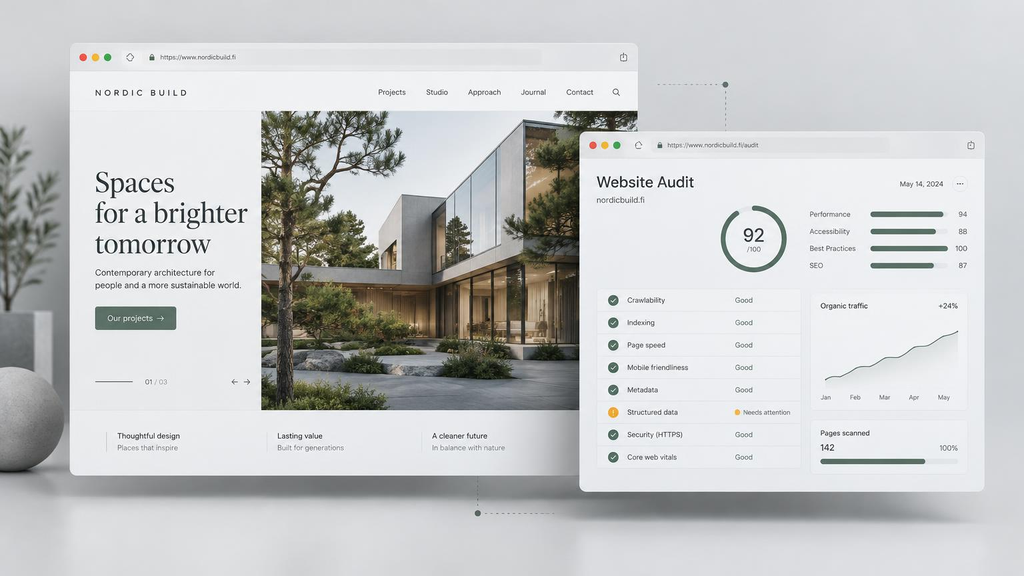
A website audit is a structured way to find these problems and understand what should be fixed.
You do not need to be a developer to perform a basic website audit. With a few free tools and a systematic checklist, you can identify many of the most important issues yourself.
In this guide, we will cover 25 things to check, including:
- Technical problems
- SEO
- Website speed and performance
- Mobile usability
- Navigation and UX
- Content
- Security
- Forms and conversions
- Analytics
The goal is not to achieve a perfect score in every testing tool. The goal is to identify the problems that have the biggest impact on your visitors, search visibility and business.
What Is a Website Audit?
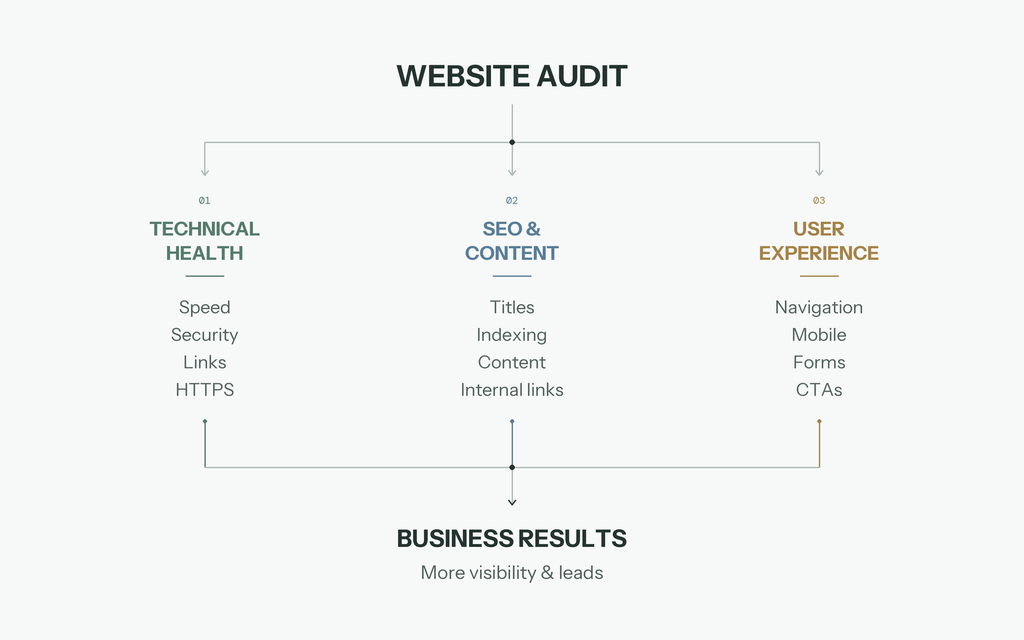
A website audit is a systematic review of a website to identify technical, SEO, performance, usability, security and content-related issues.
Think of it as a health check for your website.
A good audit should answer questions such as:
- Can visitors easily use the website?
- Does the website work properly on mobile devices?
- Can Google find and understand the important pages?
- Are there broken links or missing pages?
- Is the website fast enough?
- Is the content useful and up to date?
- Are visitors given a clear next step?
- Are forms and contact methods working?
- Are there security or maintenance problems?
- What should be fixed first?
Importantly, a website audit is not simply a list of warnings from an automated tool. Tools are useful for finding potential problems, but the results still need to be interpreted in context.
A technically perfect website can still have confusing content or poor navigation. Likewise, a website may have a few technical warnings that have very little practical impact.
The purpose of an audit is to find the issues that actually matter.
Why Should You Audit Your Website?
Websites change constantly.
You might install a new plugin, update WordPress, add new pages, change a URL, replace an image or redesign part of the site without noticing that something else has stopped working.
Over time, small problems can accumulate.
For example:
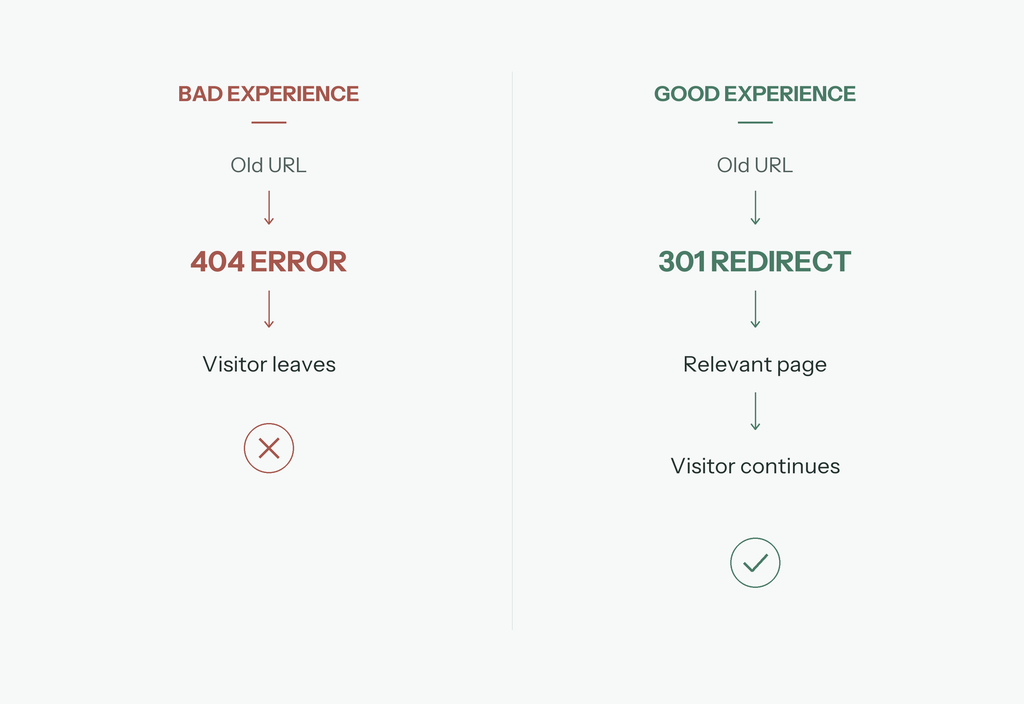
Old URL → broken link → 404 page → visitor leaves
instead of:
Old URL → redirect → relevant page → visitor continues
A regular website audit can help identify these problems before they become bigger issues.
An audit is especially useful if:
- Your website has not been updated for several years
- You recently redesigned or migrated your website
- Your website has experienced a drop in traffic
- Visitors are not contacting you or buying from you
- Your website feels slow
- You have recently changed hosting
- You have installed or removed many plugins
- Your website has many old pages
- You are unsure whether your SEO is working
- You are considering a website redesign
Website Audit Checklist
You do not necessarily need to perform all 25 checks in one sitting.
Start with the most important problems first, especially anything that prevents visitors from accessing your website or completing an important action.
1. Check That Your Website Loads Correctly
Start with the simplest question:
Does the website actually work?
Open the website on a desktop computer and a mobile phone.
Check:
- Does the homepage load?
- Do important pages load?
- Are there obvious error messages?
- Are images loading?
- Are menus working?
- Are buttons clickable?
- Are forms displaying correctly?
Do not only check the homepage.
Visit your most important pages, such as:
- Services
- Products
- About
- Contact
- Pricing
- Blogi
- Important landing pages
A website can have a perfectly functioning homepage while an important contact or service page is broken.
2. Check Your Website on Mobile
A website that looks good on a desktop computer can still be difficult to use on a phone.
Check your website on an actual mobile device if possible.
Look for:
- Text that is too small
- Buttons that are difficult to tap
- Images extending outside the screen
- Horizontal scrolling
- Overlapping elements
- Menus that do not work
- Forms that are difficult to complete
- Excessive empty space
- Pop-ups covering important content
Pay particular attention to your main conversion path.
For example:
Homepage → Service → Contact → Form → Submit
Can someone complete this entire journey comfortably on a phone?
Google also recommends paying attention to the overall mobile experience and page experience rather than focusing on one isolated metric.
3. Check for Broken Links
Broken links are one of the easiest website problems to overlook.
Click important links throughout your website and look for:
- 404 pages
- Links leading to the wrong page
- Links pointing to old URLs
- Buttons that do nothing
- Social media links pointing to the wrong account
- External links that no longer work
A broken link can be more than a minor technical problem.
If someone clicks:
“Contact us”
and receives a 404 error, you may have just lost a potential customer.
For larger websites, a crawler can help identify broken links automatically. For a small business website, manually checking the most important pages is also a useful starting point.
4. Check Your Navigation
Your website navigation should help visitors understand where they are and where they can go next.
Ask yourself:
If I were visiting this website for the first time, would I immediately understand how to find what I need?
Check:
- Is the main menu easy to understand?
- Are important pages easy to reach?
- Are menu labels descriptive?
- Does navigation work on mobile?
- Do menu links work from every page?
- Are there unnecessary menu items?
- Can visitors easily find your contact information?
Be particularly careful with links that point to sections of the homepage.
For example, a menu item might correctly point to:
Homepage → #services
but fail when clicked from another page if the same section does not exist there.
5. Check Your URLs
Your URLs should be understandable to both users and search engines.
Compare:
example.com/page?id=482
with:
example.com/website-maintenance/
The second URL gives a much clearer indication of what the page is about.
Check that important URLs are:
- Descriptive
- Relatively short
- Consistent
- Easy to understand
- Free from unnecessary parameters where possible
You should also check whether old URLs still work after previous website changes.
If a page has moved permanently, an appropriate redirect can help visitors and search engines reach the new location.
6. Check Your Page Titles
Every important page should have a useful and descriptive title.
Your page title can help users understand what a search result is about, and Google uses the page’s title element as one source for the title link shown in search results.
For example:
Bad:
Home
Better:
Professional Accounting Services | Company Name
Your titles should describe the actual page rather than simply repeating generic labels.
Also check that important pages do not accidentally share the same title.
7. Check Your Meta Descriptions
Meta descriptions are the short descriptions that may appear underneath your page title in search results.
Google can generate snippets automatically, so writing a meta description does not guarantee that Google will display exactly what you write.
Nevertheless, a useful description can help communicate what a page is about.
Check that important pages have descriptions that are:
- Relevant to the page
- Written for humans
- Specific
- Useful to someone considering clicking the result
Avoid stuffing keywords into the description.
Instead of:
Website design website development website design company website development services
write something natural that explains what the visitor will find.
8. Check Your Headings
Your headings should create a clear hierarchy.
A typical page might look like:
H1: Website Maintenance Services
H2: What Is Included
H2: Why Website Maintenance Matters
H3: Security Updates
H3: Backups
H2: Request a Quote
Check that:
- The main heading clearly describes the page
- Headings are logically structured
- Important sections have descriptive headings
- Headings are not being used simply to make text look larger
Your headings should help someone scan the page and understand its structure.
9. Check Your Internal Links
Internal links connect pages within your own website.
For example, an article about building a website could link to an article about website costs.
Good internal linking can help visitors discover relevant content and can also help search engines discover and understand pages on your website.
Look for opportunities to connect related pages.
For example:
How to Make a Website
→ Cost
→ Audit
→ Redesign
→ Maintenance
Use descriptive anchor text where appropriate instead of repeatedly using vague phrases such as “click here.”
Also check for important pages that have very few internal links pointing to them.
10. Check Your Images
Images can improve a website significantly, but poorly optimized images can also make it much slower.
Check:
- Are images unnecessarily large?
- Are they compressed?
- Are they in an appropriate format?
- Are dimensions specified?
- Do important images have useful alternative text?
- Are decorative images being treated appropriately?
- Are images causing the layout to jump while loading?
You do not necessarily need the smallest possible image.
The goal is to find a sensible balance between visual quality and file size.
11. Test Your Website Speed
Website speed affects both usability and the overall page experience.
A slow website can make visitors wait before they can see or interact with important content.
Useful tools include:
- Google PageSpeed Insights
- Lighthouse
- Chrome DevTools
- Google Search Console’s Core Web Vitals report
Do not treat the score from a single tool as the entire truth.
Look at the actual problems identified by the tool and determine which ones have meaningful impact.
For example, a huge unoptimized hero image may be worth fixing immediately, while a minor warning with little real-world impact may not deserve the same priority.
12. Check Core Web Vitals
Core Web Vitals focus on three parts of the real-world user experience:
LCP — Largest Contentful Paint
Measures loading performance.
A good target is an LCP of 2.5 seconds or less.
INP — Interaction to Next Paint
Measures how quickly the page responds to user interactions.
A good target is 200 milliseconds or less.
CLS — Cumulative Layout Shift
Measures unexpected movement of content while a page loads.
A good target is 0.1 or less.
These metrics are most useful when interpreted as part of the overall user experience rather than treated as a race toward a perfect score.
For example, if your website scores 100 in a lab test but your contact form is broken, the website still has a serious problem.
13. Check HTTPS and Security
Make sure your website loads securely using HTTPS.
Check:
- Does the main website use HTTPS?
- Does HTTP redirect to HTTPS?
- Are there browser security warnings?
- Are there mixed-content warnings?
- Are WordPress, plugins and themes updated?
- Are unused plugins removed?
- Are administrator accounts protected?
- Are backups available?
Security is especially important for websites that process contact forms, customer information, payments or other sensitive data.
A basic website audit is not a substitute for a professional security assessment, but it can reveal obvious issues that should not be ignored.
14. Check Your WordPress Installation
If your website uses WordPress, perform a basic maintenance check.
Look at:
- WordPress version
- Plugin versions
- Theme version
- Unused plugins
- Unused themes
- Failed updates
- Backup system
- Administrator accounts
Do not blindly update everything on a live production website without considering compatibility and backups.
A plugin update that breaks a form or page builder can create a new problem while attempting to solve another.
This is one reason ongoing website maintenance can be valuable for businesses that do not want to manage the technical side themselves.
15. Check Your Forms
Forms are often one of the most important parts of a business website.
And they are also easy to forget.
Test every important form yourself.
Check:
- Can you open it?
- Can every field be completed?
- Does validation work?
- Does the form submit successfully?
- Does the customer see a confirmation?
- Does the business receive the notification?
- Does the email contain the submitted information?
- Does it work on mobile?
Do not assume that a form works just because it is visible on the page.
Submit a real test entry.
A broken contact form can quietly cost a business leads without creating any obvious error on the homepage.
16. Check Your Calls to Action
Every important business page should make the next step reasonably clear.
Depending on the purpose of the page, that might be:
- Pyydä tarjous
- Contact us
- Book an appointment
- Buy now
- Call us
- Get started
- View our services
Ask:
What do I want the visitor to do after reading this page?
If the answer is unclear, the page may need a stronger call to action.
Also make sure your CTA actually works.
A beautiful “Contact Us” button that leads to a broken page is still a broken conversion path.
17. Check Your Content
Good design cannot compensate for unclear or outdated content.
Review your important pages and ask:
- Is the information still accurate?
- Are prices current?
- Are opening hours correct?
- Are contact details correct?
- Are old employees or services still listed?
- Are there outdated promotions?
- Are there placeholder texts?
- Are there spelling mistakes?
- Is important information missing?
Look particularly carefully for template content.
Lorem ipsum, example text, stock business names or leftover English template sections can make a website look unfinished and reduce trust.
18. Check Whether Your Website Communicates What You Do
Visit your homepage and give yourself five seconds.
Can a new visitor answer:
What does this company do?
If the answer is no, the problem may not be technical at all.
Your homepage should make the basic value proposition reasonably clear.
For example:
“We provide accounting services for small businesses.”
is immediately understandable.
Something like:
“Creating possibilities for tomorrow.”
may sound professional, but tells a visitor almost nothing without additional context.
Your headline, supporting text and visual content should work together to explain the business.
19. Check Your Contact Information
Make it easy for visitors to contact you.
Check:
- Phone number
- Sähköpostiosoite
- Contact form
- Physical address if relevant
- Opening hours
- Social media links
- Map or directions if relevant
Test the phone number and email address yourself.
Also check that contact information is consistent across the website.
If one page says the business closes at 16:00 and another says 17:00, visitors may not know which information is correct.
20. Check Accessibility Basics
Accessibility is about making your website usable by as many people as reasonably possible, including people who use assistive technologies or interact with websites in different ways.
As a basic check:
- Can you navigate the main website using a keyboard?
- Is keyboard focus visible?
- Do form fields have clear labels?
- Is text readable?
- Is there sufficient contrast?
- Do images have appropriate alternative text where needed?
- Are buttons and links understandable?
- Does the website remain usable when zoomed in?
Automated accessibility tools can identify many potential problems, but they cannot replace manual testing.
Accessibility is not simply about getting a green score from a scanner.
21. Check Your 404 Page
Try visiting a URL that does not exist on your website.
For example:
example.com/this-page-does-not-exist
What happens?
A useful 404 page should make it easy for visitors to recover.
Consider providing:
- A clear explanation
- A link to the homepage
- Navigation
- A search function where appropriate
- Links to important pages
A 404 page does not need to be complicated.
Its job is simply to prevent a dead end.
22. Check Your Google Search Visibility
If your website relies on Google for traffic, make sure you know what Google actually sees.
Google Search Console can help you understand:
- Which pages are indexed
- Search queries generating impressions
- Clicks from Google Search
- Search performance
- Indexing issues
- Core Web Vitals
- Sitemap information
Check whether your most important pages are indexed.
If a page that should appear in Google is not indexed, investigate why instead of assuming it will eventually fix itself.
23. Check Your Sitemap and Robots.txt
Two technical files worth checking are your XML sitemap and robots.txt.
Your sitemap helps search engines discover important URLs.
Your robots.txt file can provide crawling instructions.
Check that:
- Your sitemap exists
- Important pages are included
- Unwanted URLs are not unnecessarily included
- Your sitemap is submitted to Search Console where appropriate
robots.txtis not accidentally blocking important content
Be especially careful when moving or rebuilding a website.
A single incorrect setting can potentially prevent search engines from crawling pages you actually want to be found.
24. Check Analytics and Tracking
If you cannot measure what visitors are doing, it becomes much harder to improve your website.
Check that your analytics setup is working as intended.
Depending on your setup, you may want to measure:
- Visitors
- Traffic sources
- Important page views
- Form submissions
- Purchases
- Phone clicks
- Other important conversions
Do not install tracking simply because you can.
Only collect the information you actually need, and make sure your analytics and cookie setup follows the applicable privacy requirements.
25. Prioritize the Problems You Find
This may be the most important part of the entire audit.
After checking your website, you might end up with a list like this:
- 404 link on an important service page
- Huge homepage image
- Missing meta descriptions
- Old blog post
- Broken social media link
- Slow mobile performance
- Outdated WordPress plugin
- Confusing navigation
- Weak homepage headline
- Missing CTA
Do not try to fix everything simultaneously.
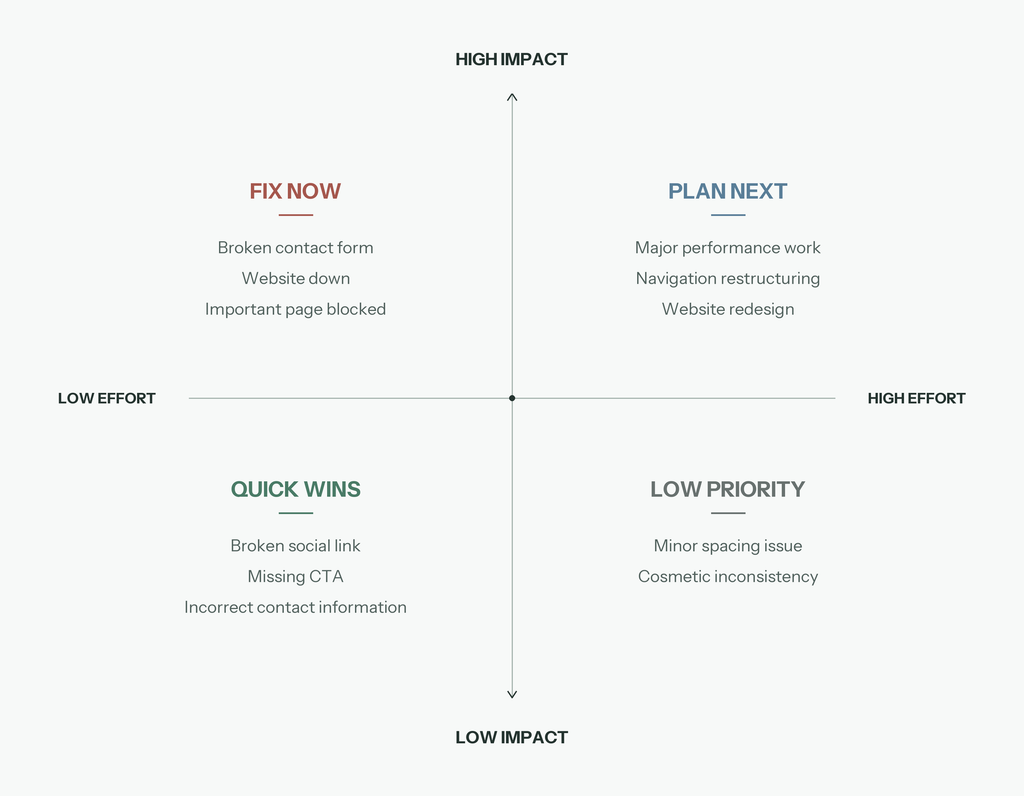
Instead, prioritize problems based on impact and urgency.
A useful approach is:
Critical
Problems that prevent important functionality or create serious technical/security issues.
Examples:
- Broken contact form
- Website unavailable
- Important pages blocked from indexing
- Serious security problem
High priority
Problems that significantly affect users, search visibility or conversions.
Examples:
- Very slow important pages
- Broken navigation
- Poor mobile experience
- Major usability problems
- Important broken links
Medium priority
Problems that should be improved but do not prevent the website from functioning.
Examples:
- Outdated content
- Missing internal links
- Weak metadata
- Minor design inconsistencies
Low priority
Small improvements that can wait until more important problems have been fixed.
Examples:
- Minor spacing issues
- Small visual inconsistencies
- Non-critical cosmetic improvements
This prevents a common problem with website audits: ending up with a huge list of issues but no idea what to do first.
Free Tools You Can Use for a Website Audit
You do not need expensive software to perform a basic website audit.
Google Search Console
Useful for checking search performance, indexing and Core Web Vitals.
Google PageSpeed Insights
Useful for investigating page performance and identifying potential speed improvements.
Lighthouse
Built into Chrome DevTools and useful for checking areas such as performance, accessibility and SEO.
Your Browser
Never underestimate manual testing.
Open your website on different devices, click the links, submit the forms and try to complete the tasks that matter to your customers.
Automated tools can identify technical patterns, but they cannot fully understand your business or your visitors.
How Often Should You Audit Your Website?
There is no universal schedule that applies to every website.
A small, stable business website may not need a complete manual audit every week.
However, you should consider checking your website whenever something significant changes.
For example:
- After a redesign
- After a migration
- After changing hosting
- After installing major plugins
- After changing important URLs
- After a significant traffic drop
- After noticing conversion problems
- When the website has not been reviewed for a long time
You can also perform smaller checks regularly instead of waiting for one large annual audit.
When Should You Fix Your Website vs. Redesign It?
An audit can reveal two very different situations.
Sometimes the website is fundamentally fine and only needs a few repairs.
For example:
- Broken links
- Plugin updates
- Image optimization
- Form problems
- SEO improvements
- Navigation fixes
In this situation, a targeted technical fix may be enough.
Other times, the audit reveals deeper problems.
For example:
- The design feels significantly outdated
- The website is difficult to navigate
- The mobile experience is poor
- The content structure no longer matches the business
- The CMS is difficult to maintain
- The website has accumulated years of technical problems
- The current platform cannot support the required functionality
In those situations, a larger website redesign may make more sense than continuously patching individual problems.
The audit helps you make that distinction.
Final Website Audit Checklist
Before finishing your audit, check these 25 areas:
- Website loads correctly
- Mobile experience works properly
- Important links work
- Navigation is clear
- URLs are sensible
- Page titles are useful
- Meta descriptions are reviewed
- Headings are structured logically
- Internal links are useful
- Images are optimized
- Website speed has been tested
- Core Web Vitals have been reviewed
- HTTPS and basic security are working
- WordPress and plugins are maintained
- Forms have been tested
- Calls to action work
- Content is accurate and up to date
- Homepage clearly explains the business
- Contact information is correct
- Basic accessibility has been checked
- 404 page is useful
- Google Search visibility has been checked
- Sitemap and robots.txt have been reviewed
- Analytics and conversions are working
- Issues have been prioritized
Final Thoughts
A website audit is not about making every tool report a perfect score.
It is about finding the problems that matter.
A broken contact form, confusing navigation or slow mobile page can be much more important to a small business than a minor technical warning that has little effect on visitors.
Start with the basics:
Does the website work?
Then look at:
Can people use it?
Then:
Can search engines find and understand it?
And finally:
Does the website help the business achieve its goals?
If your audit reveals a few small problems, they may be straightforward to fix.
In case you discover a long list of technical, usability and design issues, it may be worth considering a broader website improvement or redesign.
If you are not sure what needs to be fixed, a professional website audit can help turn a long list of technical warnings into a clear set of practical priorities.
Need help identifying or fixing problems on your website?