
What are 5 most Common WordPress Errors? A WordPress error is more than a technical inconvenience when your website is part of your business.
If a visitor lands on a broken page, sees a server error, cannot submit a contact form, or is greeted by a security warning, they may simply leave. And unlike a technical problem inside your office, a website error can affect potential customers 24 hours a day.
For businesses that rely on their website for leads, sales, bookings, enquiries, or credibility, even a short-lived problem can have a real commercial impact.
WordPress itself identifies several recurring problems, including the White Screen of Death, internal server errors, database connection errors, timeouts, 404 errors, and critical errors.
The good news? Most WordPress errors can be diagnosed and fixed systematically.
Here are five of the most important ones to watch for.
1. The WordPress 404 Error: “Page Not Found”
A 404 error appears when a visitor or search engine requests a URL that does not exist.
For example, someone might click a link to:
yourbusiness.com/services/web-design
…but the page has been deleted, renamed, or moved.
For a personal blog, that may be a minor annoyance. For a business website, it can mean a lost customer.
Imagine a potential client clicking a Google result for your most important service and landing on a “Page Not Found” screen. Instead of looking for the correct page, they may simply go back to Google and choose a competitor.
WordPress documentation notes that 404 problems can occur with pretty permalinks and that resetting the permalink structure can sometimes resolve them.
Why 404 errors can hurt your business
Broken pages can:
- Interrupt the customer journey
- Make your business appear poorly maintained
- Prevent visitors from finding products or services
- Break internal links
- Waste traffic from search engines, referrals, and campaigns
- Reduce trust in your website
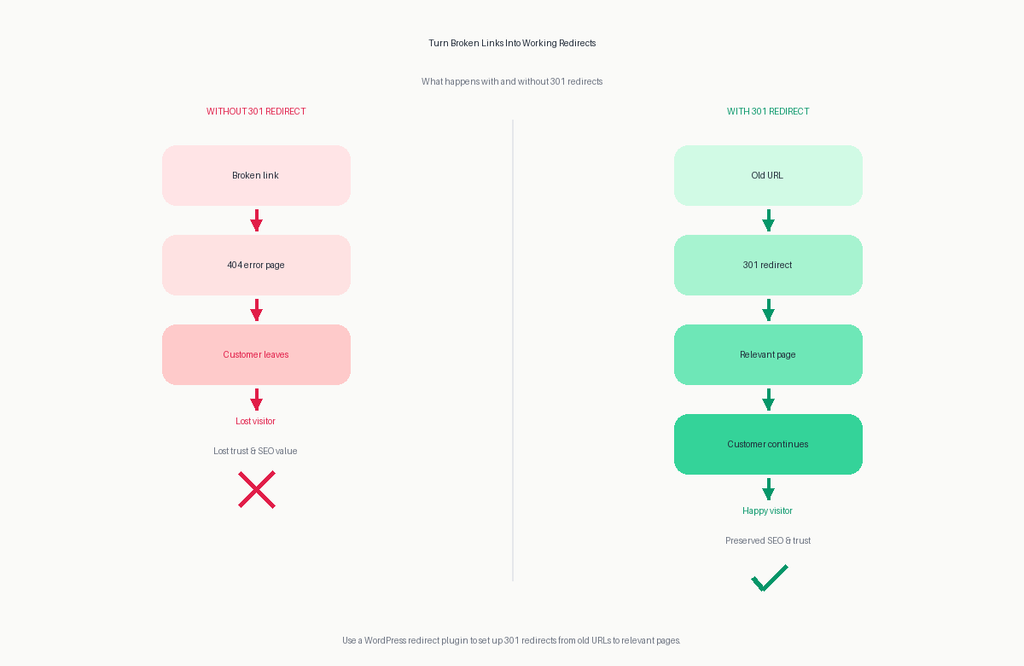
Google also recommends using meaningful HTTP status codes. A genuinely missing page should normally return a 404 or 410 status, while a permanently moved page should generally use a 301 redirect.
How to reduce 404 errors
Regularly check your website for broken links and outdated URLs.
If a page has been permanently moved, redirect the old URL to the most relevant new page rather than leaving visitors at a dead end.
Your 404 page should also be useful. Include your main navigation, a link to the homepage, popular content, and—where appropriate—a search function.
2. The WordPress 500 Error: Internal Server Error
Few messages are more alarming for a business owner than:
“500 Internal Server Error.”
This usually means that something went wrong on the server while processing the request. The exact cause can vary.
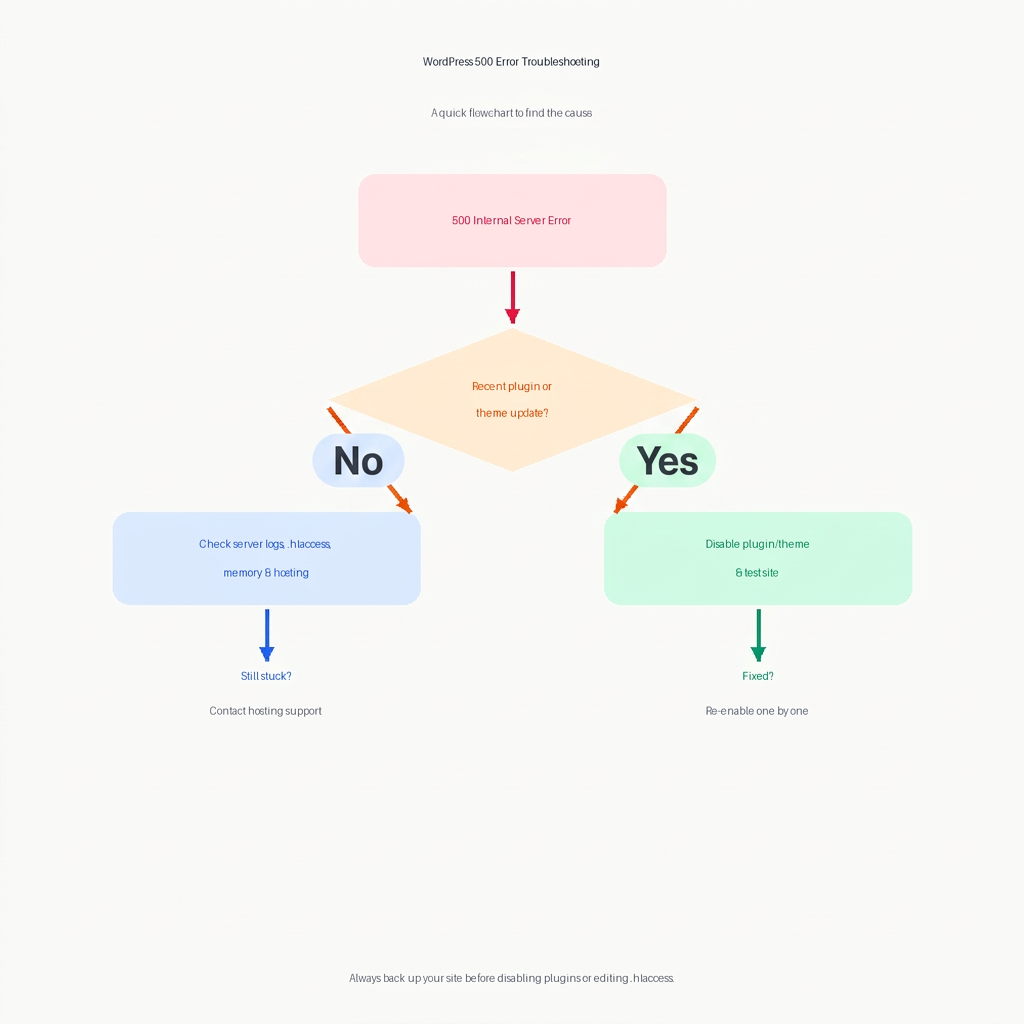
Common troubleshooting steps for this problem include checking plugins, switching to a default theme, checking the .htaccess file, and reviewing memory limits.
A plugin conflict is one possible cause. A theme problem, server configuration issue, corrupted .htaccess file, or insufficient server resources can also be involved.
Why a 500 error is serious
A 500 error can make important parts of your website unavailable.
That could mean:
- Your homepage does not load
- Your online shop stops working
- Your contact forms become inaccessible
- Customers cannot complete an enquiry
- Your team cannot access the WordPress dashboard
- Advertising traffic lands on a broken website
If you are paying for Google Ads, social advertising, or other traffic, sending visitors to a website that returns a 500 error is particularly painful.
You are effectively paying to send potential customers somewhere they cannot buy from you.
What should you do?
First, determine whether the problem affects the entire website or only specific pages.
Then check recent changes. Did you install or update a plugin? Change the theme? Modify server settings?
WordPress recommends systematically disabling plugins and switching to a default theme when troubleshooting problems such as internal server errors.
3. “Error Establishing a Database Connection”
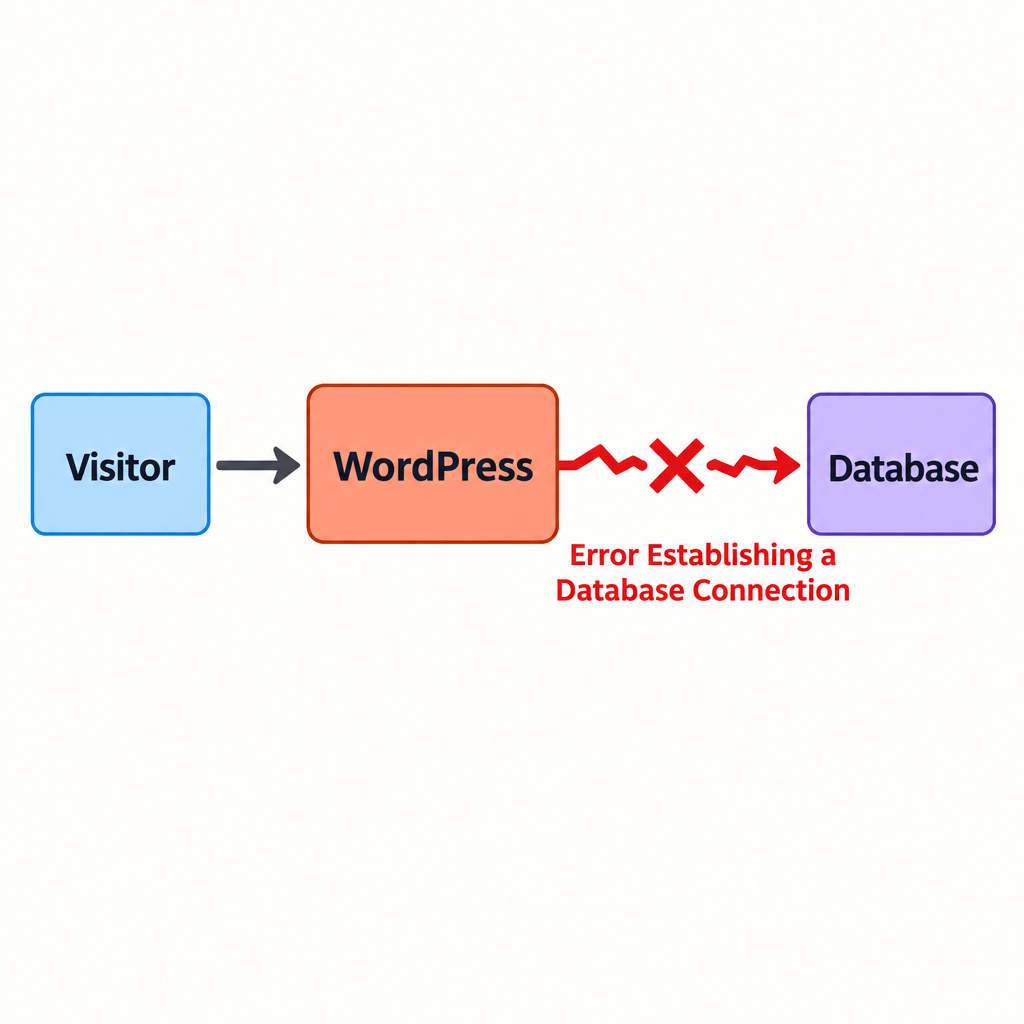
This is one of the most serious WordPress errors because WordPress relies on its database to retrieve much of the content and configuration that makes the website work.
When visitors see:
“Error Establishing a Database Connection”
the website may be effectively unavailable.
WordPress identifies several possible causes, including incorrect database credentials in wp-config.php, hosting or server problems, database limits, and, in some cases, a compromised website.
Why this WordPress error can cost customers
Think about your database as one of the systems your website needs in order to function.
If WordPress cannot communicate with it, pages may fail to load correctly—or the entire website may become inaccessible.
For an e-commerce business, that can stop customers from browsing products or completing purchases.
For a service business, it can prevent visitors from reaching your contact forms, service pages, booking systems, or other important content.
What to check
If this error appears, investigate:
- Database credentials in
wp-config.php - Database server availability
- Hosting resource limits
- Recent migrations or server changes
- Database corruption
- Unexpected changes to the website
Do not make database changes blindly. Always have a current backup before performing repairs or other potentially destructive operations. WordPress also recommends maintaining backups before database repair work.
4. The WordPress Critical Error and White Screen of Death
Another frightening WordPress error is the familiar:
“There has been a critical error on this website.”
In other situations, visitors may see nothing at all—a completely blank page commonly known as the White Screen of Death.
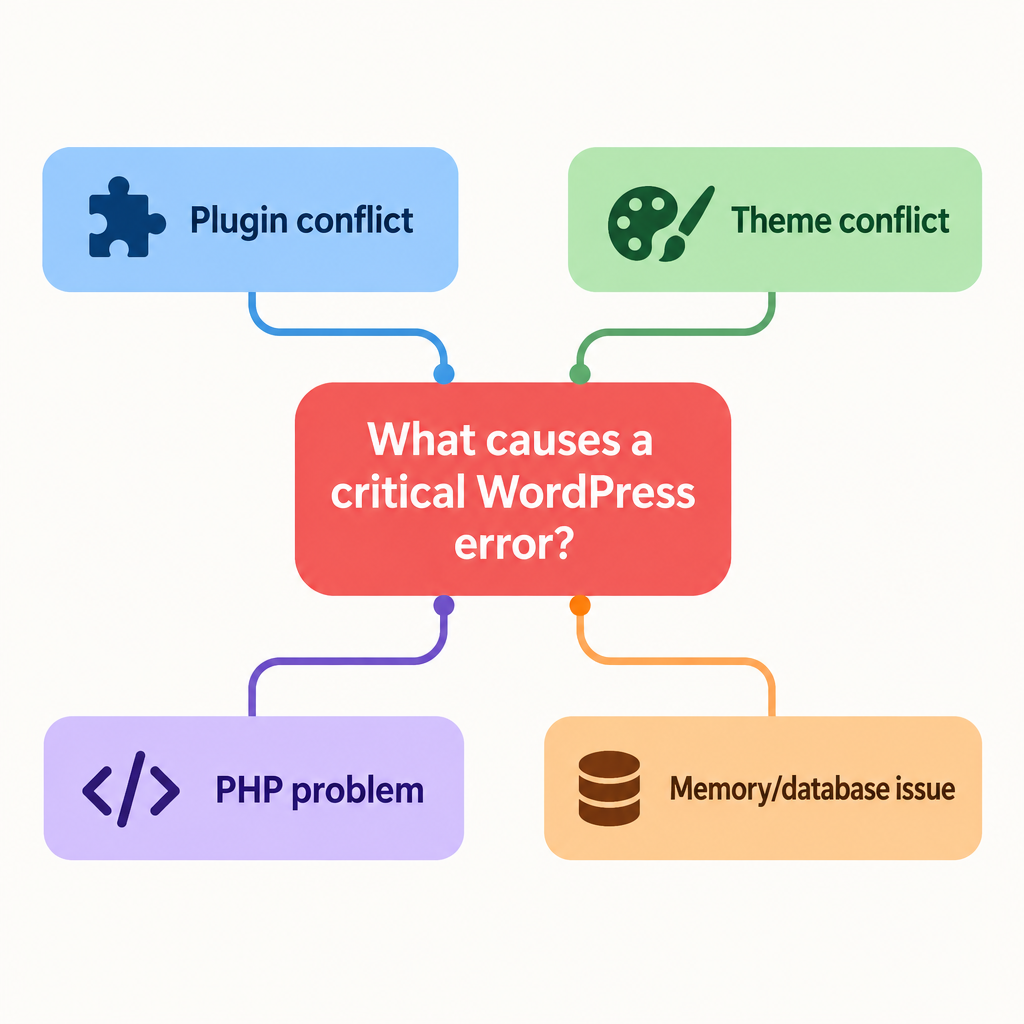
These problems can be caused by PHP errors, incompatible plugins or themes, memory limitations, database issues, or other technical problems.
The business impact is obvious: customers cannot use the website.
But there is another problem.
A broken website does not always look like a technical problem to the customer.
They may simply assume:
- Your company is no longer operating
- Your website is unreliable
- Your business is unprofessional
- They should contact a competitor instead
WordPress includes a built-in Recovery Mode that can sometimes help administrators regain access after a fatal PHP error. When Recovery Mode is triggered, WordPress can send the administrator an email with a link to troubleshoot the problem.
How to prevent critical errors
One of the best preventative measures is to treat updates carefully.
Before updating major plugins, themes, or other components:
- Make sure you have a recent backup.
- Check that your WordPress version, theme, plugins, and PHP environment are compatible.
- Test significant changes on a staging site when possible.
- Monitor the website after updates.
If a problem occurs, error logs can provide valuable clues. WordPress supports debug logging through WP_DEBUG_LOG, although WordPress recommends that debugging tools such as WP_DEBUG be used carefully and not left displaying errors on a live production site.
5. Connection Timeouts and Redirect Problems
Not every WordPress error produces a dramatic error page.
Sometimes the problem is simply that the website takes too long to respond.
A connection timeout can occur when the server is unable to handle what the website is asking it to do within the required time. WordPress notes that timeouts can be associated with limited server resources, plugins, themes, memory limits, and execution time.
Another common problem is a redirect loop, where the visitor is repeatedly sent from one URL to another without ever reaching the intended page.
For example:
HTTP → HTTPS → HTTP → HTTPS → HTTP…
From the customer’s perspective, the result is simple:
The website doesn’t work.
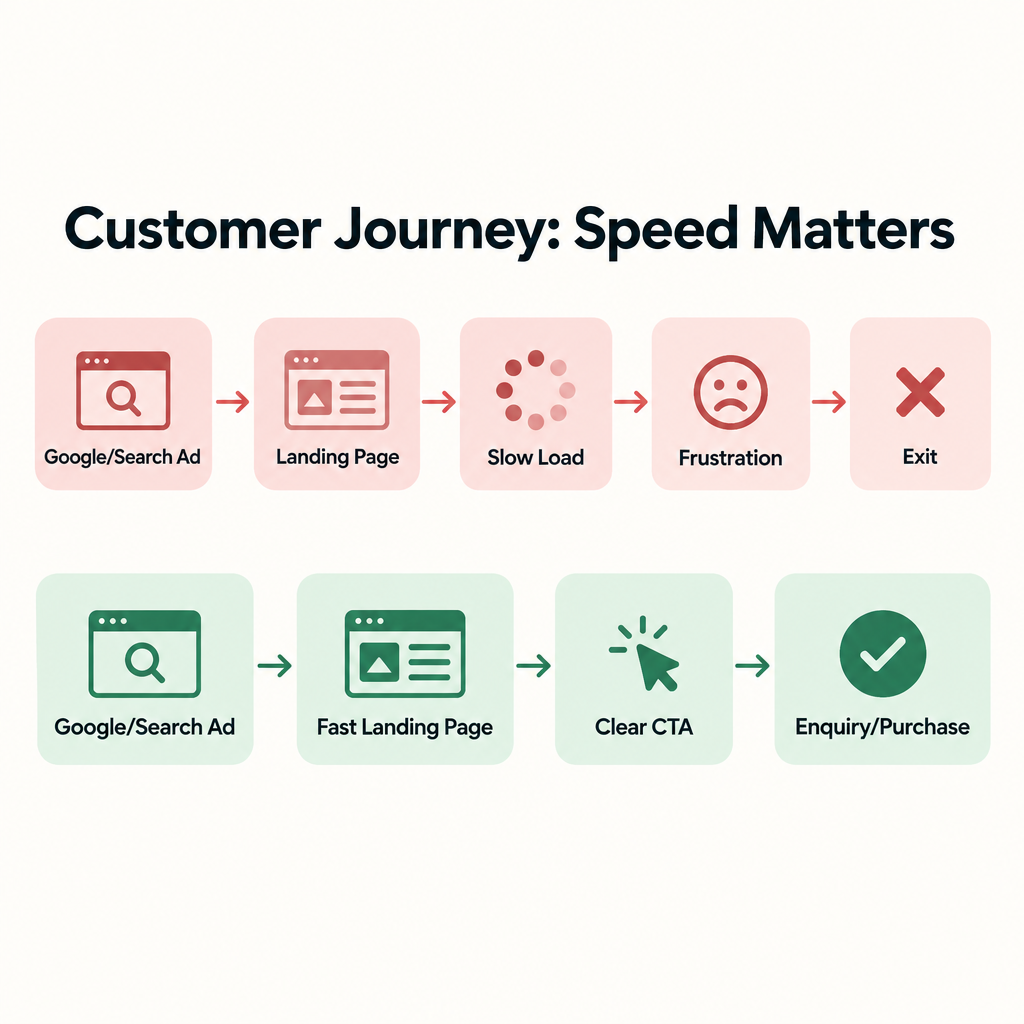
Why slow or broken pages cost customers
Online visitors have little patience for technical problems.
If a page is slow, fails to load, or keeps redirecting them, they may abandon the visit before reaching your offer.
Google also considers overall page experience important. Its guidance highlights factors such as Core Web Vitals, mobile usability, secure delivery, and avoiding intrusive experiences.
That does not mean every technical issue automatically causes a ranking penalty. It does mean that fixing technical problems is important for both users and the overall quality of the website experience.
The Real Cost of a WordPress Error
The biggest mistake business owners can make is thinking about website errors only as technical problems.
A broken WordPress website is also a sales problem.
Consider a simple example.
If your website normally generates 10 enquiries per day and a serious error prevents visitors from contacting you for an entire business day, the cost is not the cost of fixing the website.
The real cost is the value of the opportunities you may have lost.
And some consequences are less obvious.
A customer who encounters a broken website may never tell you what happened. They simply leave.
That makes website monitoring particularly important.
How to Prevent WordPress Errors Before They Cost You Customers
You cannot guarantee that a WordPress website will never experience an error.
You can, however, reduce the risk significantly.
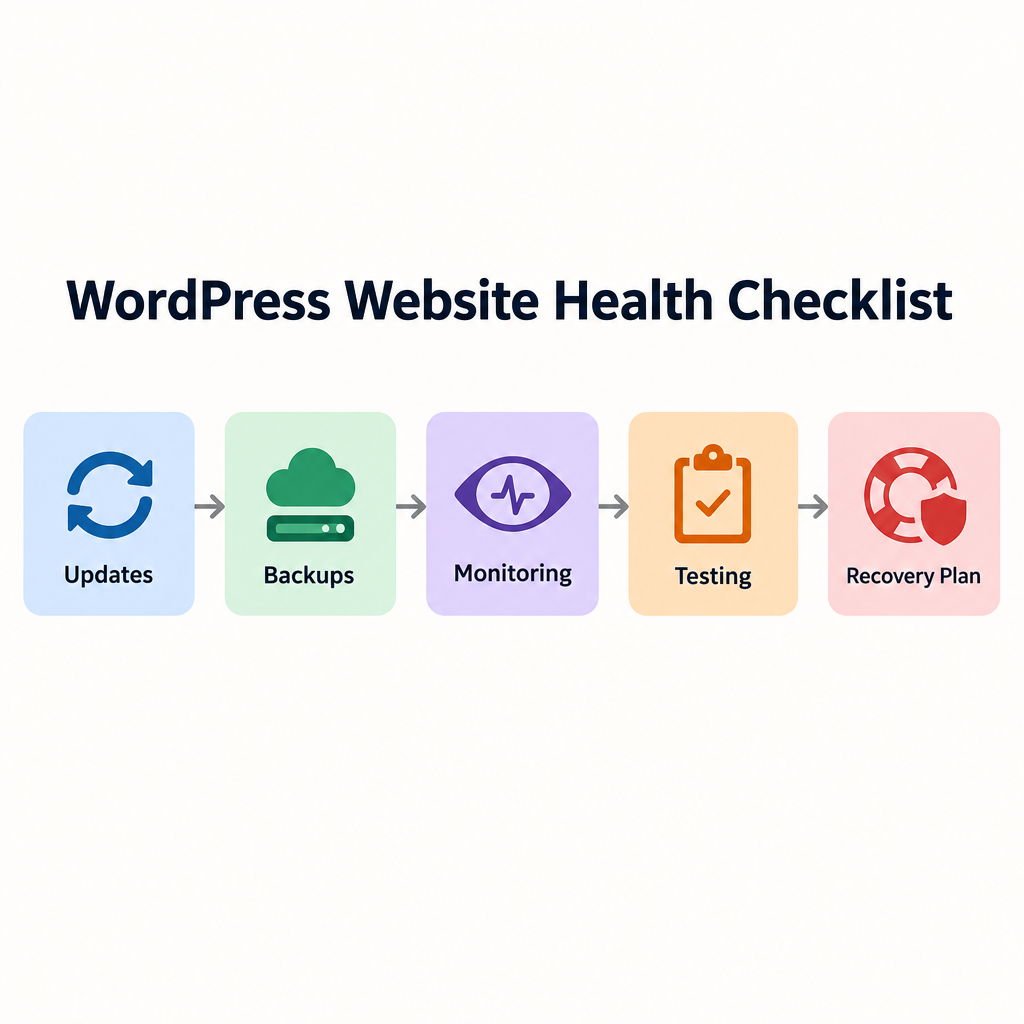
1. Keep WordPress and its components maintained
Outdated plugins, themes, and other components can create compatibility and security problems.
Do not blindly install every update the moment it appears. Instead, maintain a controlled update process and test important changes where possible.
2. Keep reliable backups
A backup gives you an escape route when something goes wrong.
Your backup strategy should cover the website files and database, and you should know how to restore it—not just assume that backups exist.
3. Monitor the website
Do not rely on customers to tell you that your website is broken.
Use website monitoring to check important pages and receive alerts when the site becomes unavailable.
4. Test your most important customer journeys
Do not only check whether the homepage loads.
Test the things that generate revenue:
- Contact forms
- Booking forms
- Checkout
- Product pages
- Login
- Important landing pages
- Phone and email links
- Navigation
- Mobile layouts
5. Have a recovery plan
When an error occurs, every minute spent wondering what to do increases the potential business impact.
Know:
- Who is responsible for the website
- Where backups are stored
- How to access hosting
- How to access WordPress
- How to check error logs
- Who to contact if the issue is beyond your team’s expertise
Final Thoughts
A WordPress error may look like a small technical issue, but for a business it can quickly become a customer acquisition, sales, and reputation problem.
A 404 error can send visitors to a dead end. A 500 error can take important pages offline. A database connection error can make the entire website unavailable. A critical error can stop WordPress from functioning properly. And timeouts or redirect problems can cause visitors to abandon the site before they ever reach your offer.
The best approach is not to wait for customers to report problems.
Monitor your website, maintain your WordPress installation, keep reliable backups, and test the parts of your website that directly generate business.
Your website is often the first interaction a potential customer has with your company.
Make sure it works when they arrive.
Frequently Asked Questions About WordPress Errors
What is a WordPress error?
A WordPress error is a problem that prevents a WordPress website or one of its functions from working as expected. Errors can be caused by plugins, themes, PHP, databases, server configuration, hosting resources, or other technical issues.
What is the most common WordPress error?
There is no single error that affects every WordPress website. Common problems include 404 errors, internal server errors, database connection errors, critical errors, plugin conflicts, and timeouts.
Can a WordPress error affect SEO?
Yes. Technical problems can prevent users and search engines from accessing pages correctly. Google recommends meaningful HTTP status codes and notes that error pages and soft 404s can affect how URLs are handled in Search.
How can I prevent WordPress errors?
Regular maintenance, backups, controlled updates, website monitoring, and testing are some of the most effective ways to reduce the risk and impact of WordPress errors.
Should I fix a WordPress error myself?
That depends on the error and your technical experience. Simple issues such as permalink problems may be straightforward to troubleshoot, while database, server, PHP, or code-related problems can require technical expertise. If you are unsure, take a backup and get professional help before making significant changes.
How quickly should a business fix a WordPress error?
As soon as possible—especially if the error affects your homepage, contact forms, checkout, booking system, or other pages directly connected to revenue. The longer a critical error remains unresolved, the greater the opportunity for lost customers.
Need Help With Your WordPress Website?
Whether your website is showing an error, running slowly, or simply needs regular maintenance, I can help. Get in touch today and let’s get your website working properly again. Click the button below to request a free quote.